 ssok Launcher
 ssokEdit
 ssokIQ
 ssokCLI
 ssokMusic Free
 ssok Keyword Extractor
 ssokPlayer
 ssokKit
 SsokRecorder
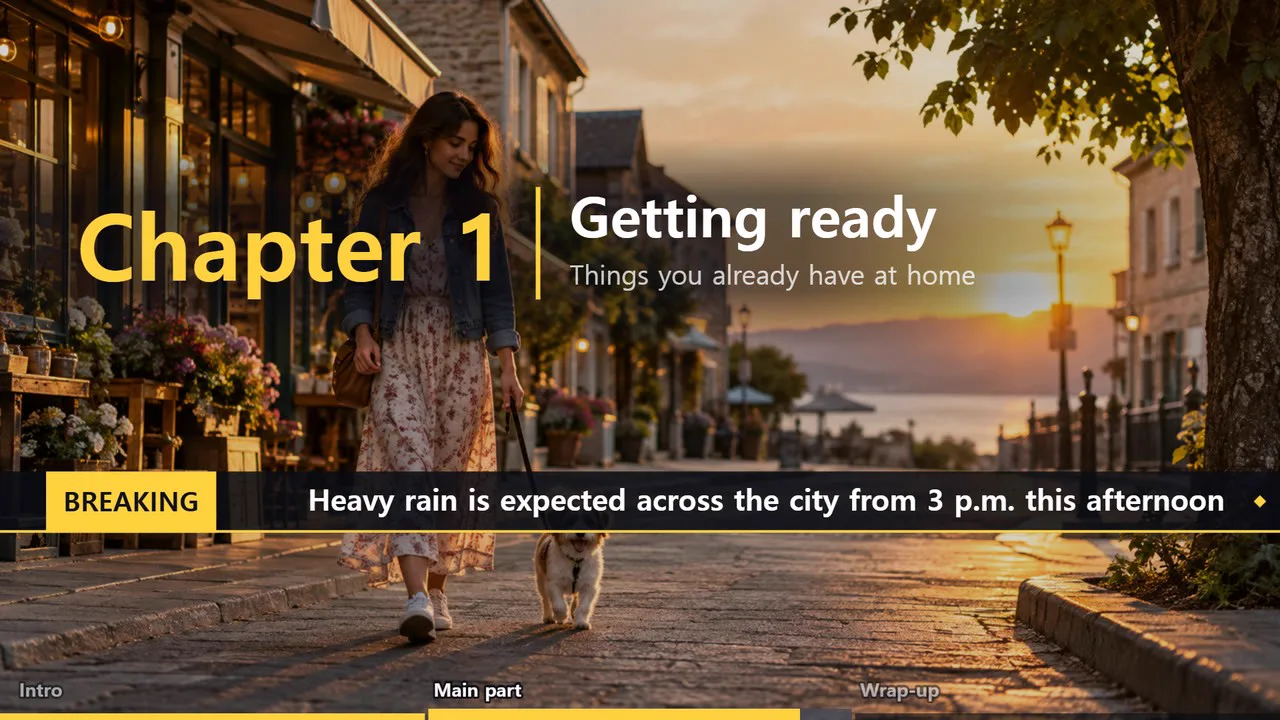
Name Tag & Title Pack (Free)
A ssokEdit production pack that turns one line of text per graphic into transparent-background name tags, chapter titles, news tickers, progress bars and chapter numbers to lay over your video
Free
1-year license from the payment date · 1 PC(s) · Seller: Strokehub Co., Ltd.
Signed-in members can download this for free. Import the pack file (.ssokpack) in ssokEdit → Pack Manager → "Import pack file", or install it directly from Pack Manager → Market packs.
Create transparent-background name tags, chapter titles, news tickers, progress bars and chapter numbers to lay over your video. Just type your text, one item per line.
No more building interview guest names, mid-video chapter titles, callouts like "This is the key part," scrolling announcements along the bottom, or a bar showing how far along the video is, one by one in your editor. No AI is involved, so everything is made exactly as you type it.
- Seven styles — name tag (a panel unfolds from an accent bar), chapter title (lines spread apart above and below), callout badge (pops out), press button (right up to the moment it's pressed), news ticker, progress bar, chapter number
- News ticker — text scrolls right to left beside a colored badge like "BREAKING." Multiple lines scroll in turn, and each line can have its own badge. Choose the speed (pixels/second) and length
- Progress bar — a thin bar at the top or bottom edge fills from 0% to 100% over the length of your video. Enter chapter times like "0:00 Intro" and the bar is split by chapter, showing the current chapter's name
- Chapter number — a large number like "01," "Chapter 1" or "Part 1" animates in and out with the chapter title. Great between scenes
- Transparent background — only the graphic shows, with your video visible underneath. It goes on the top track of the timeline
- In · Hold · Out — the first and last frames are empty, so nothing pops in or cuts off abruptly
- 5 positions · 5 accent colors · 2 panel styles
- Vertical · Horizontal — choose the same aspect ratio as your video when creating
How to write your text
김하늘 | 제품 디자이너
박지우 | 개발 팀장
이서연
One graphic per line. Text after | appears in smaller type and is optional. Up to 30 lines.
For the news ticker, write each scrolling line on its own line. Writing 날씨 | 내일은 맑음 (e.g. Weather | Sunny tomorrow) changes the badge to "Weather" while that line passes.
For the progress bar, write a start time and chapter name on each line.
0:00 도입
1:30 본론
4:10 정리
If you just want the bar without chapters, write a single line: 0:00.
Options when running
- Text — required
- Style — name tag / chapter title / callout badge / press button / news ticker / progress bar / chapter number
- Position · Accent color · Panel — the news ticker and progress bar only use top / bottom
- Hold time — 4 seconds by default
- Interval — one every 10 seconds by default. After adding them, just move them where you want on the timeline
- Ticker badge · Scroll speed — "BREAKING" and 180 pixels per second by default. Choose "None" for no badge
- Length — for the progress bar, you must enter your video's length (e.g. 5:30). For the news ticker, leave it blank to scroll the text through once, or enter a length to repeat the text for that duration
- Chapter number style · Starting number — 01 / Chapter 1 / Part 1, and the first number
- Aspect ratio — same as your video
Good to know
- Graphics are created as two files, a "color video + mask video," with the mask applied to the clip's background removal (auto). It stays attached even if you copy or move the clip.
- Bottom positions sit just above the subtitle area so they don't overlap captions. Only the progress bar sits flush with the screen edge.
- The progress bar and long news tickers render frames for the full video length, so longer videos take more time.
- Only one style is created per run. If you need both name tags and chapter titles, run it twice.
- If you choose English as the language in the run window, it's made for English videos — your text is used as written, and only preset text changes to English: the default ticker badge "속보" → BREAKING, chapter numbers "1장" · "제1장" → Chapter 1. Times can also be written in English like "1:30," "90s," "1m30s" or "1 min 30 sec," and the badge can be turned off with "none."
Requirements
- ssokEdit 1.3.2 or later (Windows)
- Microsoft Edge (included with Windows) — used to render the graphics