 ssok Launcher
 ssokEdit
 ssokIQ
 ssokCLI
 ssokMusic Free
 ssok Keyword Extractor
 ssokPlayer
 ssokKit
 SsokRecorder
ssokEdit Production Packs
Before & After Pack (Free)
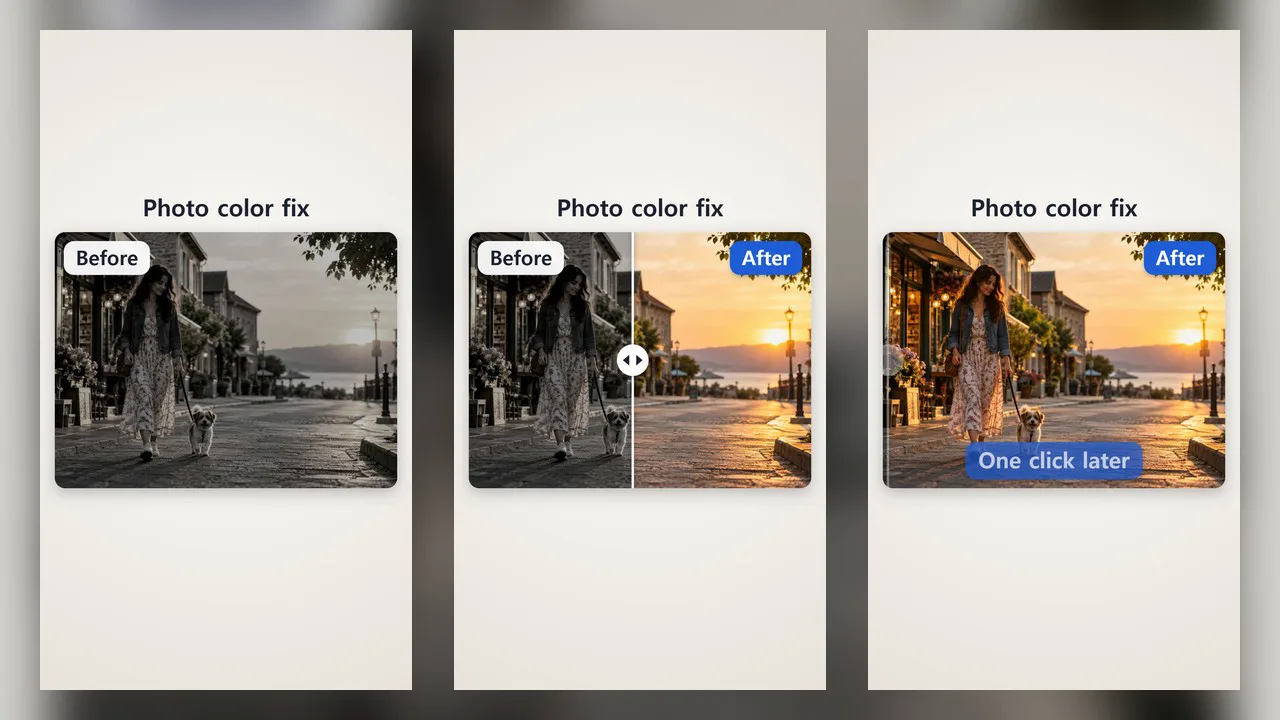
A ssokEdit production pack that turns two of your photos into a before-and-after comparison video (no AI)
Free
1-year license from the payment date · 1 PC(s) · Seller: Strokehub Co., Ltd.
Signed-in members can download this for free. Import the pack file (.ssokpack) in ssokEdit → Pack Manager → "Import pack file", or install it directly from Pack Manager → Market packs.
Make a before-and-after comparison video from two of your own photos.
No AI involved. Your two photos are placed in the same frame under the same rules and simply animated, so there's little waiting, and the same settings always produce the same video.
- Divider line — A vertical line with a round handle moves across. It starts on the before photo, reveals the after, returns to the middle and pauses half-and-half, then ends on the after photo
- Side by side — Before and after slide in one after another and sit side by side, then the after photo grows to finish. Side-by-side or stacked is chosen automatically, whichever shows the photos larger
- Crossfade — Before and after fade into each other twice in the same spot, ending on the after photo
- Wipe — A soft, diagonal edge sweeps across, changing before into after
- Labels — "Before" and "After" labels sit on their respective photos. You can change the text (e.g. Before cleaning · After cleaning)
- Title · Closing text — The title stays above the photos throughout; the closing text appears below the after photo at the end (e.g. 3 months later). Both are optional
- Two backgrounds — Light · Dark
- The result appears on your timeline as a single "Before · After" video clip. Vertical and horizontal
Great for
- Cleaning and decluttering
- Interior design and home repairs
- Clothing and furniture makeovers
- Drawing progress (sketch and finished piece)
- Fitness progress, plant and garden growth
Options when running
- Before photo · After photo — Both are required
- Display style — Divider line / Side by side / Crossfade / Wipe
- Before label · After label — Defaults to "전" · "후" (up to 12 characters)
- Title — Optional (up to 40 characters; wraps to two lines if long)
- Closing text — Optional (up to 30 characters)
- Background — Light / Dark
- Length — Chosen in the run window. 6–30 seconds (default 10 seconds)
Supported photos
- JPG · PNG photos. Photos taken upright on a phone are read with the correct orientation.
- Two shots taken from the same spot with the same framing work best. Both photos are centered and fill the same box, so with matching framing, the same areas line up as the line passes.
- If the two photos have different aspect ratios (one landscape, one portrait), they're fitted to a box with an in-between ratio, so edges get cropped on both. It's best to use matching ratios.
- Large photos are scaled down to 1920 pixels on the long side. PNGs with transparent backgrounds get a white background.
- In vertical videos, landscape photos are placed horizontally in the center of the screen. Use portrait photos to fill more of the screen.
Good to know
- Your photos never leave your PC. All conversion and rendering happen on your own PC; nothing is sent to AI or servers.
- Only use photos you have the right to use. Get permission for photos taken by others or showing other people.
- This production pack does not retouch photos or check their content. It simply shows the two photos side by side as they are. If your video shows body changes or the effects of procedures, treatments or products, you are responsible for ensuring the content is truthful and complies with advertising regulations.
- Two photos with different lighting, angles or distances may make the difference look larger or smaller than it really is.
- No narration or subtitles. No audio is added, so add music or commentary on the timeline.
- Choose English as the language in the run window to make an English video. If labels are left blank or at the defaults "전" · "후", they appear as Before · After; titles, closing text and custom labels appear exactly as entered (English labels up to 20 characters, titles up to 60, closing text up to 48).
Requirements
- ssokEdit 1.3.2 or later (Windows)
- Microsoft Edge (included with Windows) — used to capture the screen