 ssok Launcher
 ssokIQ
 ssokCLI
 ssokMusic Free
 ssok Keyword Extractor
 ssokPlayer
 ssokKit
 SsokRecorder
AI translation This post was translated from Korean by AI. View original
ssokEditJust Enter a Topic, Get a Finished Video | How to Use ssokEdit's 75 Production Packs
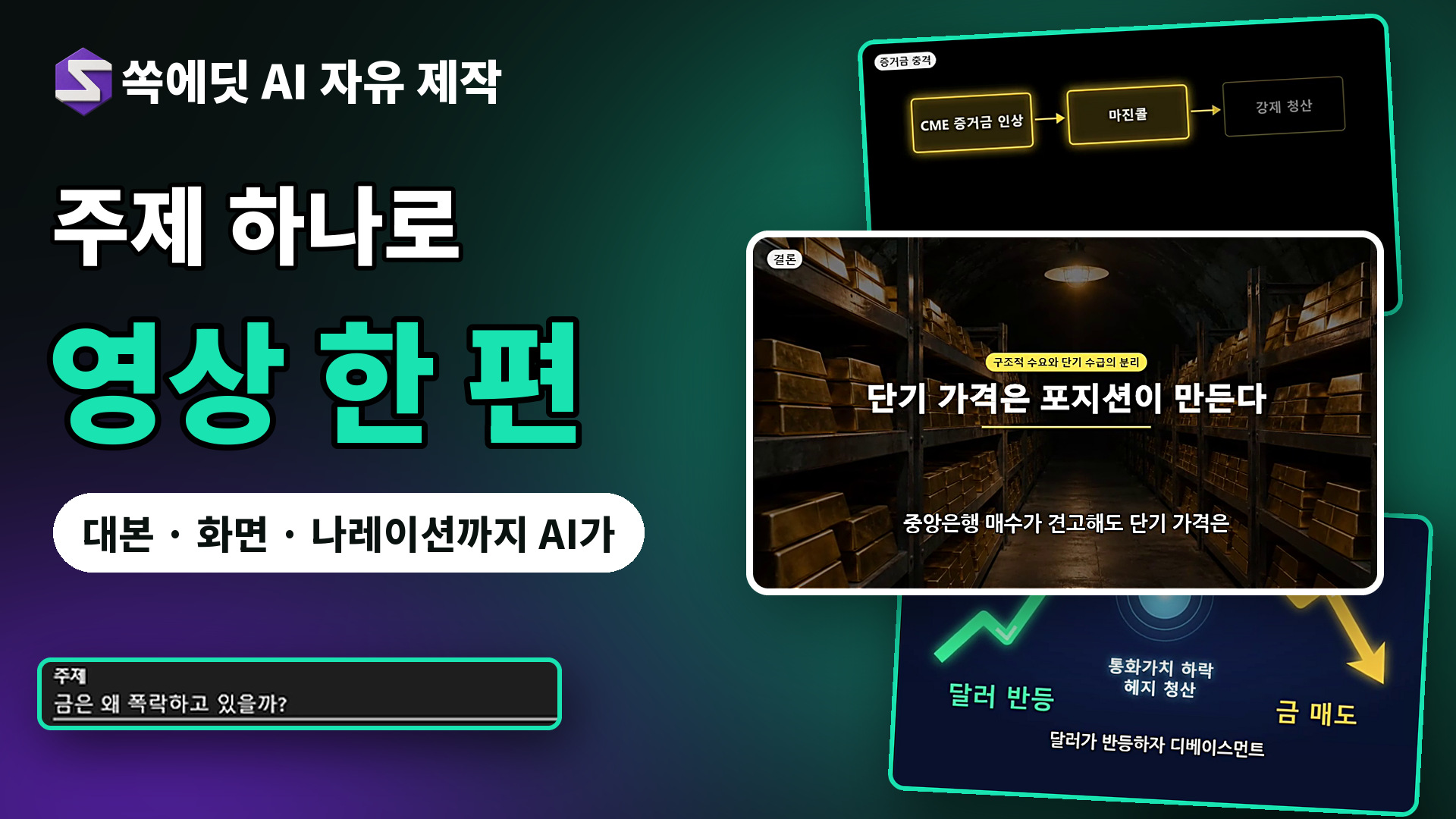
Enter the topic you want, and AI automatically creates the script, narration, scenes, and subtitles. There are currently 75 production packs, with more on the way.
관리자·
·140 views
 ssokEdit guide
View product ›
Enter the topic you want, and AI automatically creates the script, narration, scenes, and subtitles.
There are currently 75 production packs, and more will keep coming.
How to Use
- On the home screen, tap "Create with Production Pack."
- Choose a production pack in the style you want.
- Enter the topic you want to create.
- Select the aspect ratio, length, pack options, and voice actor.
- Tap "Create" and production starts automatically.
- When it's done, the scenes, narration, and subtitles are placed on your timeline.
Styles You Can Create
Compilations, recipe remakes, chart explainers, 3D simulations, shadow puppet plays, satellite briefings, 5-second mini-games, ink-wash scrolls, 16-bit pixel RPGs, and more
Why It's Convenient
- Choose from 1 to 20 minutes for landscape long-form videos, or up to 3 minutes for vertical Shorts.
- Production continues even if you close the window, and you can keep editing other things in the meantime.
- The finished result lands directly on your timeline, so you can edit it right away.
Watch the video to see the full result made from a single topic: "Explaining the Golden Cross."